
fbpx

How to use Stickers alive

Stickers Alive Logo

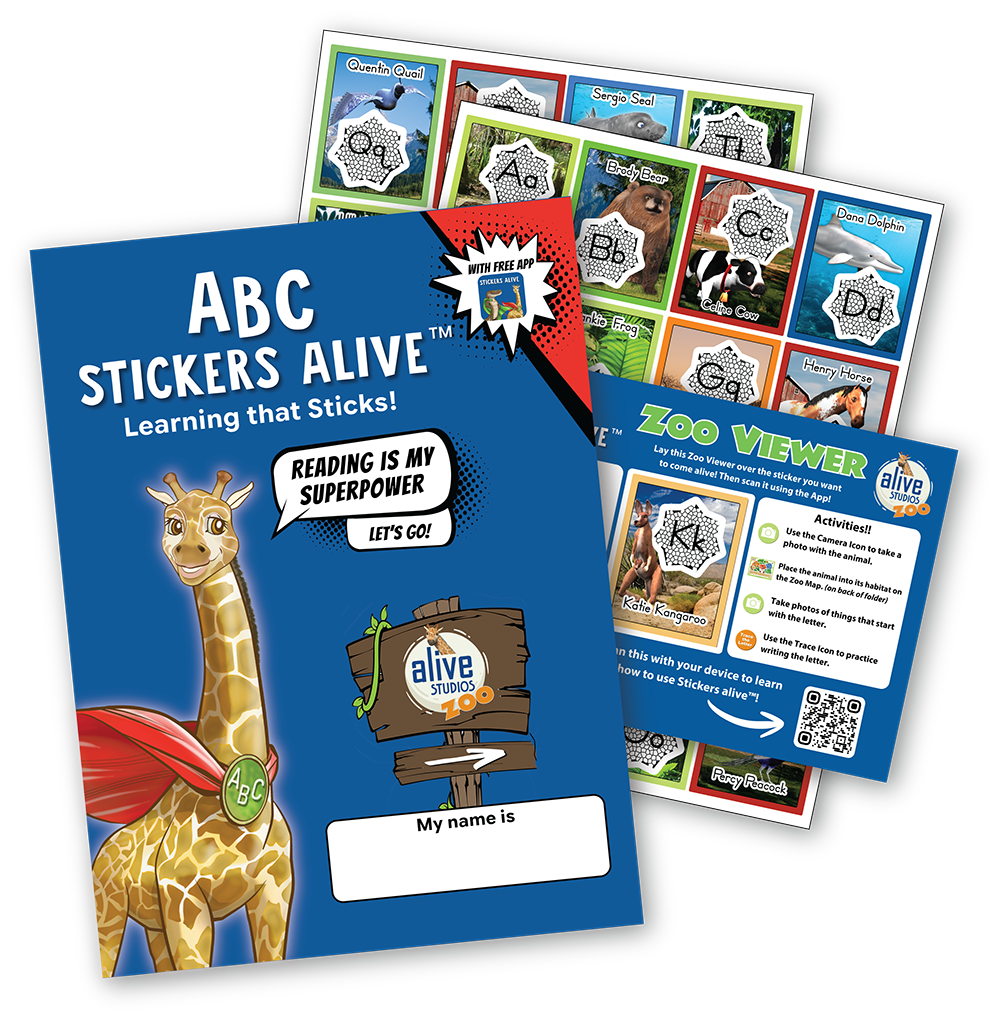
Stickers Alive - Learning that Sticks!
Stickers Alive Set

Learn Together.
Laugh Together.

Learn Together, Laugh Together

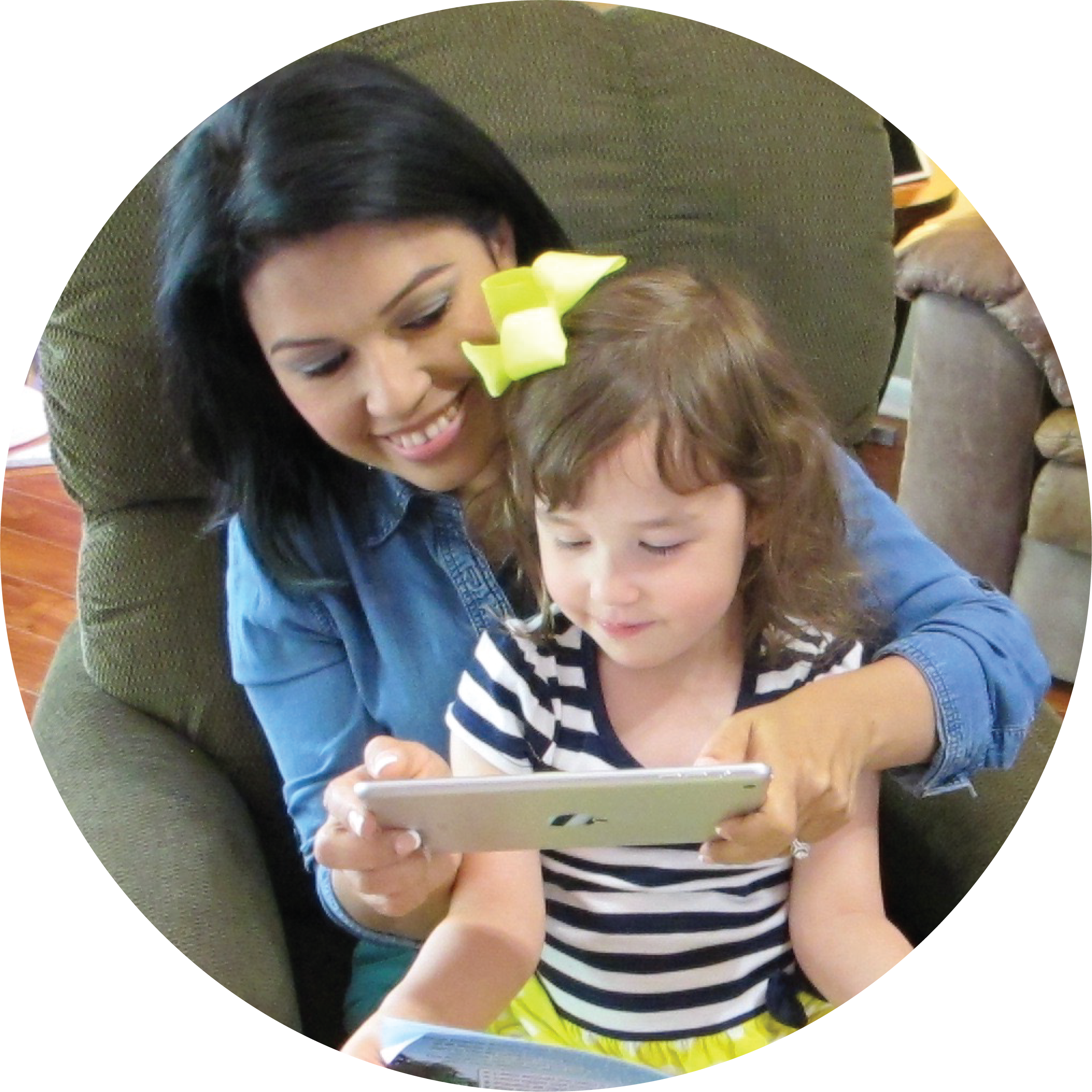
A shared parent-child learning experience that helps children discover letters, letter sounds, and zoo animals in a fun, memorable way.

Download the FREE Stickers alive™ app onto your smart phone or tablet

See Stickers alive in Action!

Watch Now!


Make your Stickers come alive!

Download the FREE Stickers alive™ app onto your smart phone or tablet:
Stickers Alive App Icon

Get it on Google Play
Download on the App Store

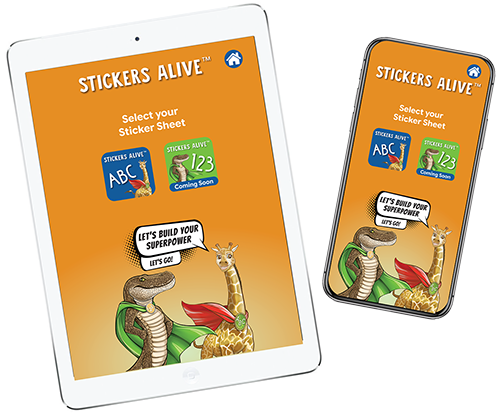
Stickers Alive on Tablet and Mobile

Your smart phone or tablet must meet the following specifications to use the Stickers alive™ app:

For iPhones:

iPhone SE Gen 1 (2016) needs iOS 15 or higher

iPhone SE Gen 2 (2020) needs iOS 15 or higher

iPhone SE Gen 3 (2022) needs iOS 15 or higher

For iPad:

iPad Air 3rd Generation (2019) need iOS 15 or higher

iPad all screens need iOS 15 or higher

iPad (5th Generation) needs iOS 15 or higher

For Android: (smartphones or tablets)

1. Android version 7 (Nougat) or newer

2. API version 24 or higher

Note: Chromebooks are NOT supported by our mobile apps.

Let us know what you think about Stickers alive!

Your feedback will help us create the best learning experience for all!



Discussion questions and activities you can do with your
child after making an animal/letter come alive:

Discuss these questions
with your child.

  • Question
    What animal did you make come alive?
  • Question
    Can you make the animal’s sound?
  • Question
    What is the animal doing?
  • Question
    What is the animal’s name?
  • Question
    The animal has a SuperPower!
    It can turn into a letter.
  • Question
    Can you name the letter?
  • Question
    What sound(s) does the letter make?

Activities!

  • Camera
    Use the Camera Icon to take a photo
    with the animal.
  • Map
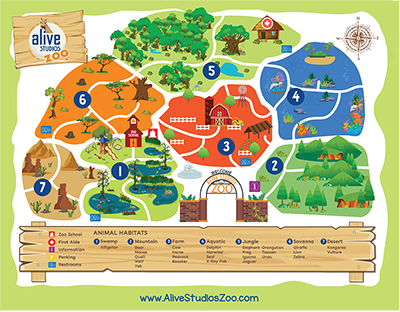
    Place the animal into its habitat on the
    Zoo Map. (on back of folder)
  • Camera
    Take photos of things that start with
    the letter.
  • Trace
    Use the Trace Icon to practice writing
    the letter.

Preguntas para platicar y actividades que puedes hacer con
tu hijo después de darle vida a un animal o a una letra:

Hable sobre estas
preguntas con su hijo/a.

  • Question
    ¿Qué animal hiciste cobrar vida?
  • Question
    ¿Puedes imitar el sonido del animal?
  • Question
    ¿Qué está haciendo el animal?
  • Question
    ¿Cómo se llama el animal?
  • Question
    ¡El animal tiene un superpoder!
    Puede convertirse en una letra.
  • Question
    ¿Puedes nombrar la letra?
  • Question
    ¿Qué sonido hace la letra?

¡Actividades!

  • Camera
    Use el ícono de la cámara para tomar
    una foto con el animal.
  • Map
    Ponga el animal en su hábitat en el
    Mapa del Zoológico.
  • Camera
    (en la parte de atrás de la carpeta)Tome fotos de cosas que empiezan con la letra.
  • Trace
    Use el ícono de trazar para practicar
    escribir la letra.

Download the Question and Activites in other languages:

Join me on our reading superpower journey!

Click for Animal / Habitat Fact Sheets

Click for Animal / Habitat Fact Sheets

Click for Alignments

Click for Alignments

Don’t have a Stickers alive™ set yet?

Email Mitch Bonder at mbonder@kaplanco.com
or Stephanie Dowlearn at stephanie@alivestudiosco.com.


Or, see below to try a sample now!

1

Download the FREE Stickers alive™ app:

Stickers alive app

Get it on Google Play
Download on the App Store

2

How to use our Stickers alive™ app:

1.
Open the Stickers alive app. Select YES.
2.

Select ABC Stickers alive.
This opens your device’s camera and gets ready to scan an animal sticker (Scan Star).
ABC Stickers Alive

3.

Point your device’s camera at the Scan Star below.
When your camera focuses, Gerdy Giraffe will appear!

Gerdy Giraffe Scan Star
4.

Use the app buttons to learn about the Gerdy and the letter Gg.

Toggle Mode
Animal Mode Buttons
(Animal Mode)
Letter Mode Buttons
(Letter Mode)

5.

Use the Camera icon to take pictures.
Camera icon

6.

Use the Eraser icon to clear the screen.
Eraser icon